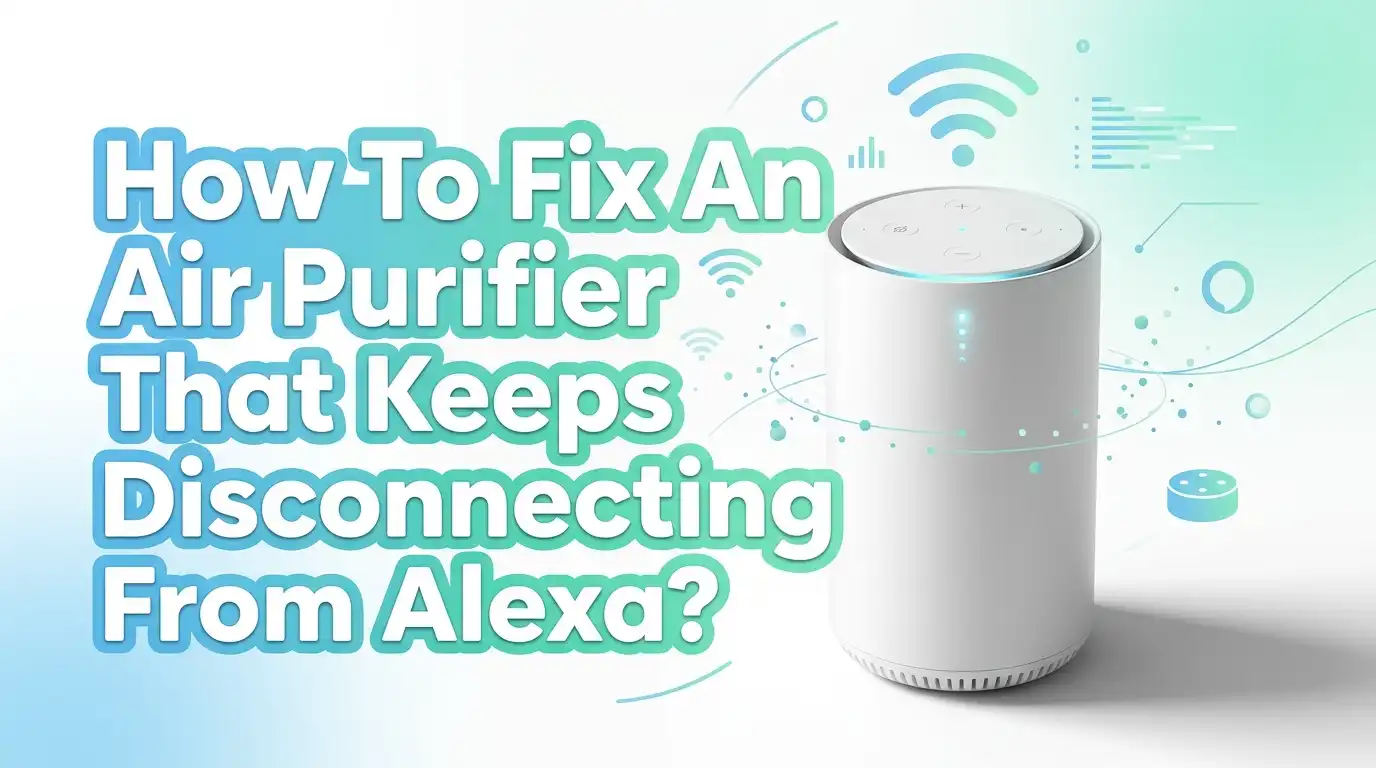
How To Fix An Air Purifier That Keeps Disconnecting From Alexa?
Your air purifier should clean the air without any fuss. But it keeps dropping off Alexa, and that gets old fast. You say a command, and Alexa replies that the device is not responding.
You open the app, and the purifier shows as offline. This problem frustrates many smart home owners, and the good news is that you can fix it yourself.
Most disconnection issues come from a weak signal, a tired router, or a small software glitch. You do not need a technician for most of these. You just need the right steps in the right order.
In a Nutshell:
- The router is the usual suspect. A weak signal or an overloaded router drops your purifier from the network. Moving the device closer or rebooting the router fixes most cases.
- Air purifiers need the 2.4GHz band. Almost every smart purifier connects only to 2.4GHz WiFi, not 5GHz. A merged network can confuse the device and cause drops.
- A simple power cycle clears glitches. Unplug the purifier, wait thirty seconds, and plug it back in. This refreshes the connection and solves random offline errors.
- The Alexa skill can expire. When the link between the app and Alexa breaks, you must disable and re enable the skill. This relinks the device cleanly.
- A DHCP reservation keeps the IP stable. When your router gives the purifier a new address, the link breaks. Reserving a fixed IP stops this for good.
- Firmware and app updates matter. Old software causes bugs and dropped connections. Keep both the purifier app and the Alexa app current.
Why Your Air Purifier Keeps Disconnecting From Alexa
You need to know the cause before you pick a fix. Your air purifier talks to Alexa through your home WiFi and the cloud. Any weak point in that chain breaks the link. The most common cause is a weak WiFi signal at the spot where your purifier sits.
A second cause is network congestion. Too many devices on one band slow everything down. A third cause is a software glitch in the purifier, the app, or Alexa itself. Sometimes the Alexa skill token expires, and the device shows as offline.
Routers also play a big role. A router that runs for weeks without a reboot starts to drop devices. Once you spot the cause, the right fix becomes clear. The next sections cover each fix in order, from easiest to most advanced.
Step 1: Restart Your Air Purifier And Echo Device
Start with the simplest fix, because it works more often than you think. A quick restart clears temporary glitches in both devices. Unplug your air purifier from the wall. Wait thirty seconds. Then plug it back in and let it boot up fully.
Do the same with your Echo device. Unplug it, wait ten seconds, and plug it back in. This refreshes the connection between both devices and your network. Once both are back on, ask Alexa to control the purifier and check if it responds.
Pros: This method is fast, free, and safe. It needs no tools and no technical skill. It fixes a large share of random offline problems.
Cons: It only clears short term glitches. If the root cause is a weak signal or a router fault, the problem returns. You may need to move on to deeper fixes.
Step 2: Check And Improve Your WiFi Signal Strength
A weak signal is the top reason smart devices drop off Alexa. Your purifier may sit too far from the router or behind thick walls. Try to keep the purifier within thirty feet of your router with few obstacles in between.
Walk to the purifier and check the WiFi bars on your phone at that exact spot. If the signal is weak there, your purifier struggles too. Metal objects, mirrors, and brick walls block signals badly. Move the purifier or the router if you can.
You can also reduce interference. Keep the router away from microwaves, baby monitors, and cordless phones. These devices share the same band and cause drops.
Pros: A stronger signal fixes drops at the source and improves all your smart devices. The benefit is long lasting.
Cons: You may not be able to move the router or purifier easily. Large homes may still have dead zones that need extra hardware.
Step 3: Make Sure You Use The 2.4GHz WiFi Band
This step solves a huge number of cases, so do not skip it. Almost every smart air purifier connects only to the 2.4GHz band, not 5GHz. The 2.4GHz band reaches farther and passes through walls better, which suits smart home gear.
Many modern routers merge both bands under one name. This merge confuses the purifier and makes it jump between bands or drop off. Log in to your router settings and check your band setup.
The best fix is to split the bands into two separate names. Give the 2.4GHz band its own name, then connect the purifier to that band only. Turn off band steering if your router has it.
Pros: This gives your purifier a stable, dedicated band. It stops the device from jumping between frequencies.
Cons: Splitting bands means you manage two network names. You may need to reconnect other devices after the change.
Step 4: Reboot Your Router And Modem
Your router does a lot of work, and it gets tired over time. A router that runs for weeks builds up errors and starts dropping devices. A reboot clears its memory and gives every device a fresh connection.
Unplug both your modem and router from power. Wait at least thirty seconds. Plug the modem in first and wait for it to come online fully. Then plug in the router and wait two minutes for it to settle.
Once the network is back, check if the purifier reconnects on its own. Many drops vanish after a clean router reboot. Consider rebooting your router once a week to keep things smooth.
Pros: This clears network errors and refreshes all devices at once. It is free and takes only a few minutes.
Cons: Your whole network goes down during the reboot. The fix is temporary if your router is old or overloaded.
Step 5: Update Your Air Purifier App And Firmware
Old software causes bugs, and dropped connections are a common one. Manufacturers release firmware updates to fix these exact problems. Open the app that came with your air purifier and look for a settings or device menu.
Check for a firmware update inside the app. Install any update you find and keep the purifier powered on until it finishes. Do not unplug it during the update, or you may damage the device.
Also update the app itself through your phone app store. An outdated app can fail to talk to both the purifier and Alexa. Keep both current for the best results.
Pros: Updates fix known bugs and improve stability. They often add new features too.
Cons: Some updates introduce new glitches. The update process needs a stable connection, which is hard if the device keeps dropping.
Step 6: Disable And Re Enable The Alexa Skill
The link between your purifier and Alexa runs through a skill. Over time, that link can expire or break, and the device shows as offline. Re linking the skill gives you a fresh, clean connection.
Open the Alexa app. Tap More, then Skills and Games. Go to Your Skills and find the skill for your air purifier brand. Tap the skill, then choose Disable Skill. Confirm the action.
Now wait a minute, then enable the same skill again. Sign back in with your purifier account when asked. Run a device discovery so Alexa finds the purifier fresh.
Pros: This fixes expired tokens and broken links cleanly. It often works when nothing else does.
Cons: You must sign in to the brand account again. You may need to set up any custom routines once more after re linking.
Step 7: Forget And Re Add The Device In Alexa
Sometimes the device entry in Alexa gets corrupted. Removing it and adding it fresh clears any bad data. This is a clean restart for that single device.
Open the Alexa app and go to Devices. Find your air purifier in the list and tap it. Tap the settings gear, then choose to remove or delete the device. Confirm the removal.
Now run a new device discovery. Say “Alexa, discover devices,” or use the add device button in the app. The purifier should appear as a new entry and respond again.
Pros: This wipes out any corrupted device data inside Alexa. It gives the purifier a clean slot in your smart home.
Cons: You lose any group or routine settings tied to that device. You must rebuild those after the device returns.
Step 8: Assign A Static IP Or DHCP Reservation
Your router hands out IP addresses to every device. When it gives your purifier a new address, the link to Alexa can break. A fixed address stops this from happening.
A DHCP reservation ties one IP address to your purifier forever. The router always gives that same address to the device. Log in to your router and find the DHCP or address reservation section.
Find your purifier in the device list and reserve its current IP. Save the setting and reboot the purifier so it picks up the fixed address. This keeps the device at one stable spot on your network.
Pros: This stops drops caused by changing IP addresses. It also helps with security and smart home stability.
Cons: You must access router settings, which feels technical for some. The steps differ across router brands.
Step 9: Reduce Network Congestion From Too Many Devices
A crowded network drops devices without warning. Each router handles only so many connections before it struggles. If you run many phones, cameras, and smart plugs, your purifier may lose its slot.
Count the devices on your 2.4GHz band. Move devices that support 5GHz, like laptops and phones, over to the 5GHz band. This frees up space for your smart home gear on 2.4GHz.
You can also pause or remove devices you no longer use. A leaner network gives your purifier a steadier connection. If congestion stays high, a mesh system or a new router may help.
Pros: A less crowded band improves stability for all smart devices. Your purifier gets the bandwidth it needs.
Cons: Sorting devices across bands takes time. Heavy households may still need a hardware upgrade.
Step 10: Check For Router Settings That Block Devices
Some router features quietly block or drop smart devices. Settings like AP isolation, MAC filtering, or strict firewalls can cut off your purifier. These features protect your network but sometimes go too far.
Log in to your router and look for AP isolation or client isolation, then turn it off. This setting stops devices from talking to each other, which breaks smart home control. Also check any MAC address filter and make sure your purifier is allowed.
Newer routers use WPA3 security, which some older purifiers cannot handle. Switch to a mixed WPA2 and WPA3 mode if your purifier keeps failing. This keeps both old and new devices happy.
Pros: Fixing these settings removes hidden blocks for good. It often solves stubborn cases that other steps miss.
Cons: Router menus differ and can confuse new users. Wrong changes may weaken your network security.
Step 11: Factory Reset Your Air Purifier And Set It Up Again
When nothing else works, a full reset gives you a clean start. This wipes all the purifier network settings and clears deep glitches. Use this step only after the easier fixes fail.
Check your purifier manual for the reset steps, since each brand differs. Most need you to hold a button for several seconds until a light flashes. The device then forgets its old WiFi and settings.
Set up the purifier from scratch in its app. Connect it to your 2.4GHz band, then re link it to Alexa. A fresh setup often clears problems that lingered for weeks.
Pros: This clears every old setting and bug at once. It is the most thorough software fix available.
Cons: You lose all your custom settings and schedules. The full setup takes more time than other steps.
Step 12: When To Contact Support Or Replace The Device
Sometimes the fault sits in the hardware, not your setup. If you tried every step and the purifier still drops, the WiFi chip inside may be failing. At that point, you need outside help.
Contact the purifier brand support team with your model number and a list of fixes you tried. A clear history helps them solve your case faster. Many brands offer a warranty repair or replacement for faulty units.
If the device is old and out of warranty, a replacement may cost less than repair. A newer model with better WiFi often ends these problems for good.
Pros: Support can spot hardware faults you cannot fix at home. A warranty claim may save you money.
Cons: Support replies can be slow. A replacement costs money if the warranty has expired.
Frequently Asked Questions
Why does my air purifier keep showing as offline in the Alexa app?
Your purifier shows offline when the link between it and Alexa breaks. This usually comes from a weak WiFi signal, an expired skill token, or a changing IP address. Start with a power cycle and a router reboot. Then re link the Alexa skill and assign a fixed IP. These steps fix most offline errors.
Does my air purifier need 2.4GHz or 5GHz WiFi?
Almost every smart air purifier needs the 2.4GHz band. This band reaches farther and passes through walls better, which suits smart home devices. Most purifiers cannot connect to 5GHz at all. If your router merges both bands, split them and connect the purifier to the 2.4GHz band only.
How often should I reboot my router for smart devices?
A weekly reboot keeps your router fresh and your devices stable. Routers build up errors over time, and that causes drops. You can plug the router into a smart timer to reboot it on a set schedule. This simple habit prevents many connection problems before they start.
Will re linking the Alexa skill delete my routines?
Re linking the skill itself does not always delete your routines, but it can break them. When you disable and enable the skill, the device may return with a new name. Check your routines after re linking and update any that point to the old device entry. Rebuild them if they stopped working.
Can too many devices cause my purifier to disconnect?
Yes, a crowded network drops devices often. Each router handles a limited number of connections, and the 2.4GHz band fills up fast. Move phones and laptops to the 5GHz band to free space. If congestion stays high, a mesh system or a stronger router gives your purifier the room it needs.
What should I do if no fix works at all?
If every step fails, the hardware may be the problem. The WiFi chip inside the purifier can wear out or fail. Contact the brand support team with your model and the fixes you tried. They can offer a repair, a warranty claim, or a replacement unit.

I’m Maya Brown, the voice behind Pure Breeze Vault. I write detailed, honest, and easy-to-follow air purifier reviews to help readers compare features, understand filter technologies, and choose products with confidence. My goal is to make research simpler, clearer, and more practical for anyone improving indoor air quality at home.