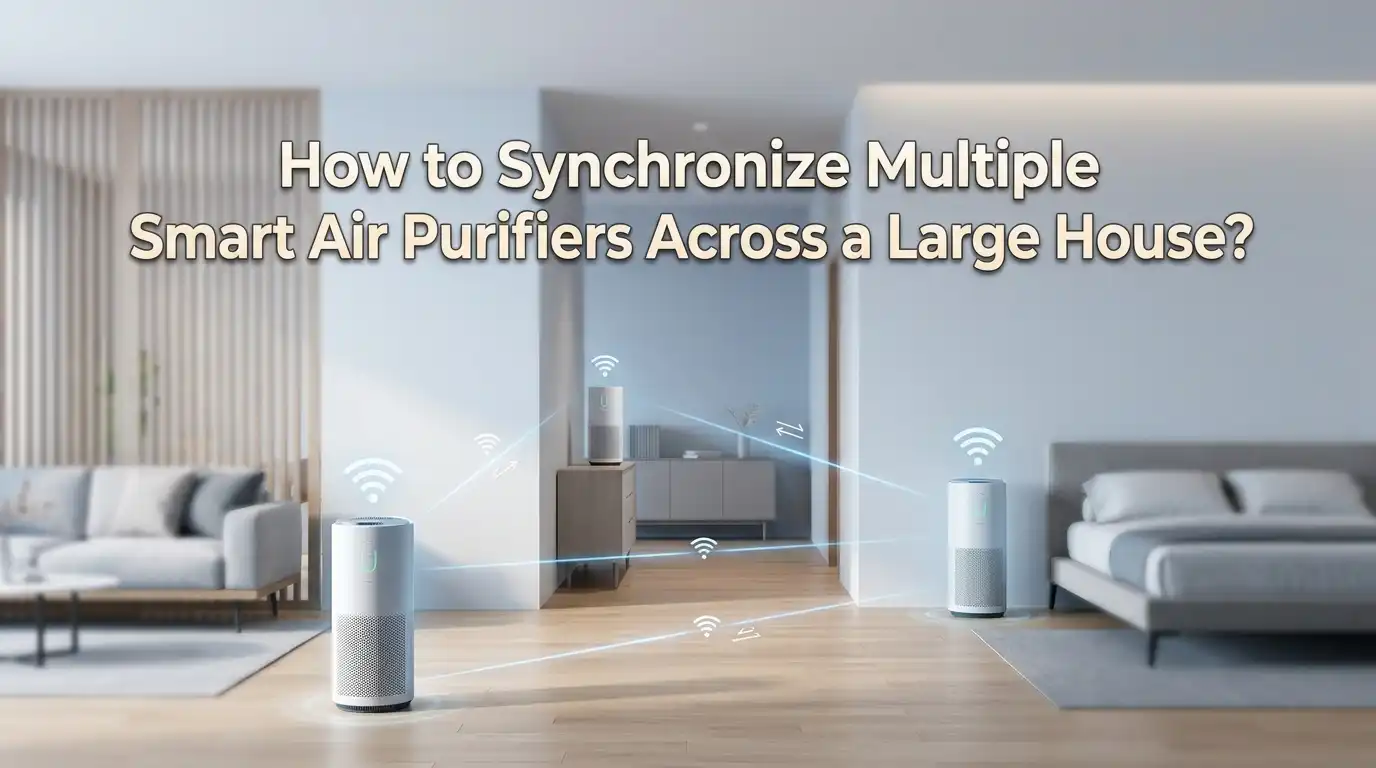
How to Synchronize Multiple Smart Air Purifiers Across a Large House?
Big homes have big air problems. One purifier in the living room cannot clean the bedroom, the kitchen, or the basement. So most families buy two, three, or even five units, and then wonder why the air still feels uneven.
The answer is simple. Standalone purifiers do not talk to each other. They run on separate timers, hit different fan speeds, and waste power in clean rooms while struggling in dusty ones.
The good news is that you can fix this. Modern smart purifiers connect to Wi-Fi, hubs, and voice platforms. With the right setup, every unit in your house works as one team.
Key Takeaways
- Pick one ecosystem first. Choose Google Home, Amazon Alexa, Apple Home, SmartThings, or Home Assistant. Mixing brands works only if they share at least one common platform.
- Group your purifiers by zone, not by floor. A zone can be a bedroom cluster, a living area, or a pet room. Each zone gets its own automation rule.
- Use air quality sensors as the trigger. Let PM2.5 readings or VOC levels turn purifiers on automatically. This saves filter life and electricity.
- Build scenes for daily life. A “Sleep” scene runs bedroom units quietly. A “Cooking” scene boosts the kitchen unit. A “Away” scene drops everything to low.
- Plan your Wi-Fi before you buy. Mesh routers with a strong 2.4 GHz band keep purifiers stable. Most smart purifiers will not join a 5 GHz only network.
- Test, then automate. Run manual checks for a week, watch the readings, and only then lock in your routines.
Why a Large House Needs More Than One Smart Purifier
A single purifier has a limit called CADR, which stands for Clean Air Delivery Rate. That number tells you how much clean air the unit pushes per minute. In a 3,000 square foot house, no single machine can keep up. Walls, doors, and stairs block airflow.
That is why pros split a home into zones. Each zone gets its own purifier sized for that space. Bedrooms, kitchens, and pet areas all carry different pollutants. Cooking smoke, pet dander, and sleep time CO2 all need separate handling.
When you add three or four units, syncing them becomes the real job. Without sync, each unit runs blind. One might blast at full speed while another sits idle, even though both rooms have the same dust load. A synced setup balances the load and cuts noise across the house.
Pick One Smart Home Platform Before You Buy
The biggest mistake people make is buying purifiers from random brands. Each brand has its own app. You end up flipping between five icons just to lower the fan speed. That is not smart. That is chaos.
Pick a platform first. Google Home and Amazon Alexa support the widest range of purifier brands, including Levoit, Coway, Winix, and Dyson. Apple Home works well if you stay inside Matter compatible models. SmartThings offers strong routines for Samsung households. Home Assistant is the power user choice and links almost anything.
Pros of one platform: single app, shared voice control, easier automations.
Cons: you may need to skip a favorite brand if it does not support your hub.
Choose the platform first, then shop for purifiers that match. This single rule saves hours of frustration later.
Map Your House Into Air Zones
Before you place units, draw a simple floor plan. Mark every room, doorway, and air vent. Now group rooms by how the air actually flows, not by walls.
A typical large home breaks into four or five zones. The sleep zone holds the bedrooms. The living zone covers the family room and dining area. The kitchen zone handles cooking smoke. The work zone covers the home office. The utility zone includes basements, garages, or laundry rooms.
Each zone needs its own purifier sized for that square footage. A bedroom unit does not need to be huge. A kitchen unit, on the other hand, should have a strong carbon filter for odors.
Pros of zoning: better targeting, lower noise, longer filter life.
Cons: more upfront planning and slightly higher cost than one giant unit.
This zone map becomes the blueprint for every automation you build later.
Check Your Wi-Fi Coverage First
Smart purifiers live and die by Wi-Fi. If the signal drops, the unit goes offline and your automations break. Many large houses have dead zones in basements, attics, and far bedrooms.
Walk through every room with your phone and check the Wi-Fi bars. Anything below two bars will cause trouble. Most smart purifiers only connect to the 2.4 GHz band. That band travels farther but gets crowded easily.
The fix is a mesh Wi-Fi system. Mesh routers spread strong signal to every corner of the house. Place one node near each zone where a purifier will sit.
Pros of mesh Wi-Fi: stable connections, no dead zones, easy to expand.
Cons: higher cost than a single router, and setup takes about an hour.
Skip this step and you will spend weekends rebooting purifiers that “fell off” the network. Trust me, fix the Wi-Fi first.
Add Each Purifier to Your Chosen App
Once your platform is picked and Wi-Fi is solid, start adding units one at a time. Open the brand app first, set up the purifier there, and then link the brand app to your main hub. This two step process is normal for almost every model.
Use clear names. Do not call it “Purifier 1.” Call it “Bedroom Purifier” or “Kitchen Purifier.” Voice assistants work much better with descriptive names. If you say “Hey Google, turn on the kitchen purifier,” it just works.
Group the units in your hub app under one room or area. Google Home calls these “Rooms.” Alexa calls them “Groups.” Apple Home calls them “Rooms” inside a “Home.”
After adding each unit, test it by toggling fan speed from the hub app. If the command takes more than five seconds, your Wi-Fi or cloud link has trouble. Fix it now, before you build automations on a shaky base.
Build a Master Group for Whole House Control
Now create a top level group that includes every purifier. Name it something like “All Purifiers” or “Whole Home Air.” This single group lets you control every unit with one tap or one voice command.
In Google Home, tap the plus icon and create a new group. In Alexa, go to Devices, then Groups, and add all purifiers. Apple Home users can build a scene that targets every fan device at once.
This master group is great for emergencies. Wildfire smoke outside? Tap once and every unit goes to high. House guests coming over? Bump everything to medium an hour before they arrive.
Pros of a master group: one tap whole home control, fast emergency response.
Cons: it overrides zone level settings, so you may run quiet rooms harder than needed.
Use the master group for big events. Use zone groups for daily routines. The two layers work well together.
Use Air Quality Sensors as Smart Triggers
Manual control is fine, but the real magic happens when sensors do the work. Air quality sensors measure PM2.5, VOCs, CO2, and humidity in real time. Place one sensor in each major zone.
Many smart purifiers have built in sensors. Others rely on a separate monitor like Airthings, Awair, or AirGradient. Whichever you pick, make sure the sensor data flows into your smart home hub.
Now build a rule. If the bedroom PM2.5 reading goes above 35, turn on the bedroom purifier at high. When the level drops below 12, switch back to low. This kind of automation runs forever without your input.
Pros of sensor triggers: hands free, energy efficient, longer filter life.
Cons: sensors cost extra, and cheap ones can give false readings.
Spend a little more on a trusted sensor. Bad data leads to bad automations.
Create Daily Scenes for Real Life Routines
Scenes turn many actions into one. They match how families actually live. Build scenes around the times of day when air needs change.
A Morning scene lowers bedroom purifiers and ramps up the kitchen unit before breakfast cooking. A Sleep scene drops every unit to its quietest setting in bedrooms only. A Cooking scene kicks the kitchen purifier to turbo for thirty minutes. An Away scene pulls every unit down to eco mode while you are at work.
Tie scenes to time, location, or voice. Geofencing in Google Home or Alexa can detect when your phone leaves the house. When you come back within half a mile, the system can pre clean the air before you walk in.
Pros of scenes: matched to real habits, less daily fiddling, family friendly.
Cons: scenes need adjustment as seasons change. Pollen in spring is different from cooking smoke in winter.
Review your scenes once a season. Tweak them as your home life shifts.
Sync Purifiers With Your HVAC and Vents
A smart purifier and a smart thermostat work better together. When the HVAC fan runs, it pulls air through every room. That movement spreads pollutants but also spreads clean air from your purifiers.
Set a rule that runs the HVAC fan on low for ten minutes whenever any zone purifier hits high speed. This blends filtered air across the house and balances pollutant loads. Smart vents add another layer by closing off rooms that already have clean air.
If your HVAC has a built in MERV 13 filter or a whole home unit, the synced purifiers act as backup for hot spots like the kitchen. Layered filtration always beats a single line of defense.
Pros of HVAC sync: faster whole home cleaning, better humidity control.
Cons: complex setup, may need a smart thermostat upgrade or a pro installer.
This step is advanced, but it is what separates a good system from a great one.
Handle Mixed Brand Setups With Bridges and Matter
Many homes already own purifiers from two or three brands. You do not have to throw them out. You just need a bridge.
Matter is the new universal smart home standard. Newer purifiers from Levoit, Aqara, and others now ship with Matter support. A Matter device can join Google, Alexa, Apple, and SmartThings at the same time.
For older units without Matter, Home Assistant is the rescue tool. It runs on a small computer like a Raspberry Pi and speaks to almost every brand through community plugins. Once inside Home Assistant, all your units feel like one family.
Pros of bridges and Matter: keep existing gear, mix brands freely.
Cons: Home Assistant has a learning curve, and Matter support varies by model.
If you are buying new today, check the box for the Matter logo. Future you will say thanks.
Troubleshoot Common Sync Problems
Even good setups break sometimes. Here are the issues that come up most often, and the fast fixes that solve them.
Problem: One purifier keeps dropping offline. Move a Wi-Fi mesh node closer, or change the router’s DTIM interval to 1. Some Winix and Levoit units hate higher values.
Problem: Voice commands hit one unit but not the others. Check that every purifier sits in the same group inside your hub app. Rename any unit with confusing names.
Problem: Automations run twice, or skip entirely. This usually means two scenes overlap. Open your routines list and look for triggers that fire on the same condition.
Problem: The app shows clean air but your nose says no. Sensor placement is the cause. Move the sensor away from windows, vents, and humidifiers. Sensors near steam or sunlight give bad readings.
Keep a small note on your phone with each fix you discover. Sync issues repeat, and your future self will thank past you.
Save Energy and Filter Life With Smart Schedules
Running every purifier full blast all day is loud, costly, and wears out filters fast. A synced system can cut energy use by up to 40 percent and double filter life.
Set night schedules first. Bedrooms run at low from 10 PM to 6 AM. Living rooms drop to off after midnight. Kitchen units only ramp up when cooking happens, triggered by a smart plug on the stove hood or by motion sensors.
Use seasonal schedules too. Pollen season needs morning boosts. Winter needs more attention to VOCs from heating. Wildfire season needs an emergency override that ignores all other rules.
Pros of smart schedules: lower bills, quieter home, longer lasting filters.
Cons: schedules need updating when life changes, like a new pet or a baby.
Check your filter status monthly inside the app. Most smart purifiers track filter life and send a phone alert when replacement is due.
Frequently Asked Questions
Can I sync air purifiers from different brands?
Yes, but only through a common platform. Google Home, Alexa, SmartThings, and Home Assistant all bridge multiple brands. Matter compatible models make this even easier. Without a shared hub, each brand stays in its own app and cannot work as a team.
How many smart purifiers do I need for a large house?
Plan one unit per zone, not per room. Most large homes need three to five purifiers. Match the CADR rating of each unit to the square footage of its zone. Always size up by 20 percent for ceilings taller than nine feet.
Do smart purifiers work without internet?
Most still run their basic functions offline, like power and fan speed buttons. App control, voice control, and automations all stop without internet. Sensor based triggers also pause. A backup cellular hotspot can keep things running during outages.
Will multiple purifiers running together raise my electric bill a lot?
Not as much as you might think. A typical smart purifier uses between 5 and 60 watts depending on speed. With smart scheduling and sensor triggers, four units across a large home often add only 10 to 20 dollars per month to the bill.
What is the best room to place an air quality sensor?
Place it at breathing height, away from windows, vents, and kitchens. The center of a room about four feet off the floor gives the most accurate reading. Avoid corners and direct sunlight, since both throw off sensor data.
Can I control my purifiers when I am away from home?
Yes, every major smart home platform supports remote control through the cloud. You can check air quality, change fan speeds, and run scenes from anywhere with internet. Geofencing can also auto run scenes based on your phone’s location.

I’m Maya Brown, the voice behind Pure Breeze Vault. I write detailed, honest, and easy-to-follow air purifier reviews to help readers compare features, understand filter technologies, and choose products with confidence. My goal is to make research simpler, clearer, and more practical for anyone improving indoor air quality at home.