How To Disable The Auto-Shutoff Timer On A Smart Air Purifier?
Does your smart air purifier turn off when you least expect it? This happens because of the auto shutoff timer. Many users find this feature helpful, but it can also feel frustrating.
You set a schedule once. Then your purifier keeps following that old routine. It shuts off even when you want it running all day.
The good news is you can fix this. This guide shows you how to disable the auto shutoff timer on your smart air purifier.
We will cover the Timer and Circulate buttons found on most models. You will learn how these controls work together. We will also explain the difference between Auto Mode and Auto Off settings. These two features often confuse users.
In a Nutshell
- Find the Timer button first. It sits on the bottom control panel of most smart air purifiers.
- Press the Circulate button next. This button usually sits on the top control panel.
- Set your own schedule. You can choose when the purifier turns on and off.
- Know the difference between modes. Auto Mode changes fan speed based on air quality. Auto Off shuts the unit down after a set time.
- Watch out for Night Mode and Eco Mode. These modes can quietly turn off your purifier when air quality improves.
- Avoid power cuts if you can. A power loss erases your timer settings. You will need to set them up again.
- Use smart home routines for more control. You can send an off command through your smart home app instead of relying on the built in timer.
- Some models resume automatically. If clean air is detected for 30 minutes, the unit may restart on its own.
Understanding Auto-Off, Auto Mode, and Night Mode
Smart air purifiers have several operating modes that work together. Understanding each one helps you disable the auto shutoff timer correctly.
Auto Off is a time based feature. You set it to run your purifier for a specific number of hours. Once that time passes, the unit powers down automatically. This is different from other modes because it operates on a clock, not air quality.
Auto Mode works completely differently. This mode reads your room’s air quality in real time. The fan speed adjusts up or down based on what the sensors detect. If air quality improves, the fan may slow down. If pollution increases, it speeds up. Auto Mode does not shut off your purifier on its own.
Night Mode is designed for sleeping hours. This mode dims the display lights and reduces fan noise significantly. Night Mode often includes an auto shutoff feature that activates when air quality reaches clean levels. This is why your purifier might turn off unexpectedly during nighttime hours.
The confusion happens because these modes overlap. Your purifier might have Auto Off enabled while Night Mode is also active. Both could trigger shutdown, making it hard to figure out which one caused the problem.
Eco Mode functions similarly to Night Mode. It reduces energy use by lowering fan speed automatically. When the air becomes clean enough, Eco Mode may power down your unit completely.
Here is what matters most: Auto Off and Auto Mode are not the same thing. Auto Off uses time. Auto Mode uses air quality sensors. Night Mode and Eco Mode can both shut your purifier down when conditions improve. Check which modes are currently active on your device. Disable the ones you do not want running. This gives you precise control over when your purifier stays on and when it turns off.
Locating the Timer and Circulate Controls on Your Purifier
Most smart air purifiers have two main control buttons you need to find. The Timer button sits on the bottom of your purifier. This button controls when your device turns on and off automatically.
The Circulate button is typically located on the top of your unit. This button manages continuous air circulation settings. You will use both buttons together to disable the auto shutoff timer.
Start by looking at your purifier’s control panel. You should see several buttons arranged in a row or grid pattern. The Timer button usually has a clock symbol or the word “Timer” printed next to it. Press this button first to access timer settings.
Next, locate the Circulate button above or near the Timer button. This button often displays a fan or circulation icon. The Circulate button lets you choose between different operation modes.
Once you find both buttons, press the Timer button to see your current schedule. Your display will show how many hours or minutes remain before shutdown. If you see a countdown, the auto shutoff timer is active.
Then press the Circulate button to switch between modes. You might see options like Auto, High, Low, or continuous run. Selecting continuous run disables the time based shutoff.
Some purifiers display settings on a small screen or LED indicator. Others use a smartphone app to show timer information. Check your user manual if you cannot find these buttons in obvious locations.
The buttons feel slightly raised compared to the rest of the surface. They usually click when pressed. You may need to press and hold for two seconds to access menu options.
Take time to identify these controls before adjusting any settings. Knowing their exact location makes disabling the timer much simpler and faster.
Step-by-Step: Disabling the Auto-Shutoff Timer
Here is how to disable the auto shutoff timer on your smart air purifier.
Start by locating the Timer button on your unit. This button is usually found on the bottom or side of your purifier’s control panel. Press it once to access your current timer settings. Your display will show the scheduled shutdown time.
Next, press the Circulate button to move through available options. This button cycles through different operating modes and timer configurations. Keep pressing until you reach the “off” or “continuous” setting.
Some purifiers require you to hold the Timer button for three seconds instead of a single press. Check your manual if a single press does not work. The display should change when you hold the button longer.
Look for a setting labeled “no timer” or “always on.” This disables automatic shutoff completely. Your purifier will now run until you manually turn it off.
If your purifier has a smart home app, open it and navigate to the timer section. Most apps show a visual schedule with on and off times. Tap the schedule and select “remove” or “delete” to clear all scheduled shutdowns.
Pay attention to Night Mode and Eco Mode settings. These modes may still trigger automatic shutoff even after you disable the main timer. Access these mode settings separately and turn them off if you want continuous operation.
After making changes, press the power button to confirm your new settings. Wait a few seconds for the display to update. Your purifier should now stay on without automatically shutting down.
Test your changes by letting the unit run for at least one hour. If it shuts down unexpectedly, repeat these steps and check for active schedules in your app.
Disabling Auto-Shutoff Through a Smart Home App
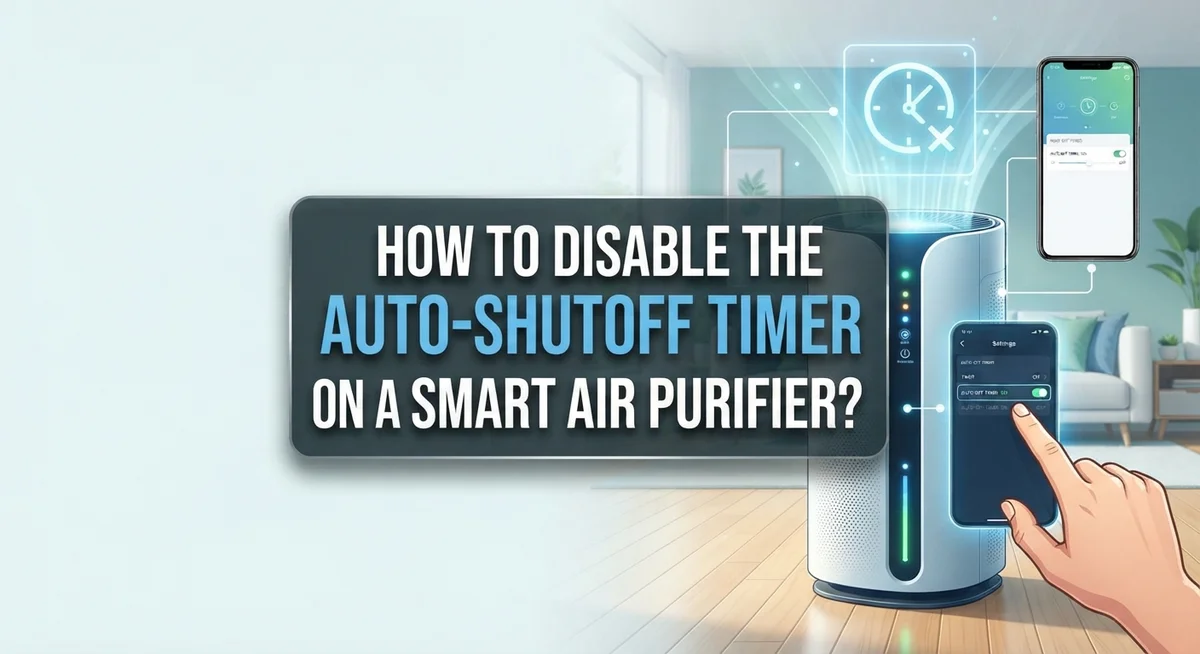
Your smart air purifier’s app gives you another way to control the auto shutoff timer. This method works especially well if you prefer managing settings from your phone instead of using physical buttons.
Start by opening your smart home app on your phone or tablet. Look for a section labeled “Timer,” “Schedule,” or “Settings.” Most apps organize these features in an easy to find menu. Tap into the timer section to see your current auto shutoff configuration.
You’ll typically see a toggle switch or button that says “Auto Off” or “Timer Enabled.” Switch this to the off position to disable automatic shutoff completely. The app will confirm the change immediately. Some apps show a countdown or schedule view instead of a simple toggle.
If your app displays a schedule grid, look for any active timers listed there. Tap each timer and select “Delete” or “Remove” to clear them out. This prevents the purifier from shutting down at preset times. Make sure no timers remain in your schedule.
Check the “Modes” section within your app as well. Night Mode and Eco Mode sometimes include their own shutoff features. You may need to disable these separately to fully prevent automatic shutoff. Toggle these modes off if you want complete control over when your purifier runs.
After making changes in the app, wait a few seconds for the update to sync with your physical unit. Your purifier will receive the new settings through your home wifi network. Some models require you to manually refresh the app or restart the purifier to apply changes.
Test your changes by leaving the purifier running for several hours. It should stay on continuously without shutting down. If it still powers off unexpectedly, return to the app and verify all timers and auto shutoff features are truly disabled.
Why Your Purifier Might Still Shut Off Unexpectedly
Your smart air purifier might shut off when you don’t expect it for several reasons. Understanding these causes helps you fix the problem quickly.
Power loss is a common culprit. When your purifier loses electricity, even briefly, the timer settings reset completely. This means any custom schedule you created disappears. You’ll need to reconfigure everything from scratch after power returns.
Another reason involves confusing different modes. Many people mix up Auto Mode with Auto-Off mode. Auto Mode adjusts the fan speed based on air quality levels in your room. This is not the same as Auto-Off, which shuts down the unit after a specific time period. Your purifier might activate Auto Mode automatically, making you think the timer caused the shutdown.
Night Mode and Eco Mode create unexpected shutoffs too. These settings reduce fan speed and dim lights for nighttime use. Some models automatically activate Night Mode at certain hours. In Eco Mode, your purifier shuts off once it detects clean air. This happens regardless of your timer settings.
Smart home routines can also trigger shutdowns. If you set up a routine through your app or voice assistant, it might conflict with manual timer settings. The routine runs on its own schedule and overrides your physical button adjustments.
Your app settings might not sync properly with the device. Changes made in the app take a few seconds to reach your purifier. If you don’t wait for synchronization, the physical unit keeps the old settings.
Check your app’s Modes section carefully. Look for any active schedules or routines you forgot about. Sometimes multiple timers run simultaneously, causing confusion about when shutoff occurs.
Start by identifying which specific mode or feature is causing the shutdown. Test each possibility one at a time. This systematic approach reveals the exact reason your purifier shuts off unexpectedly.
Common Mistakes When Adjusting Timer Settings
Many people make simple mistakes when adjusting timer settings on smart air purifiers. Understanding these errors helps you avoid frustration and keep your device running smoothly.
The biggest mistake is confusing Auto Mode with Auto-Off mode. Auto Mode adjusts the fan speed based on air quality sensors. Auto-Off mode shuts down the purifier after a specific time passes. These are completely different functions. If you disable Auto-Off but leave Auto Mode active, your purifier may still stop running when air quality improves.
Another common error involves power loss. When your purifier loses electricity, even for a few seconds, all timer settings reset automatically. You’ll need to reconfigure everything from scratch. This catches many people off guard, especially during storms or electrical issues.
People often forget to check Night Mode and Eco Mode settings. These special modes can override your timer adjustments. Night Mode dims lights and reduces fan speed automatically. Eco Mode shuts off the purifier when air quality reaches acceptable levels. Both modes may activate without your knowledge, making it seem like the timer is still active.
Incorrect button sequencing causes problems too. Pressing the Timer button once differs from holding it for three seconds. Some models require specific button combinations. Rushing through these steps leads to incomplete adjustments.
Smart home app sync failures create additional headaches. Your phone app may show the timer as disabled, but the physical device hasn’t received the update yet. Always wait several seconds after making app changes before testing your purifier.
Finally, people overlook smart home routines. If you’ve set up automation through your smart home system, those routines may trigger shutdowns independently. Check your entire automation setup, not just the purifier’s direct settings. Review all connected routines and schedules to identify hidden triggers causing unexpected shutoffs.
Troubleshooting Persistent Auto-Shutoff Issues
When your smart air purifier keeps shutting off despite your attempts to disable the timer, several troubleshooting steps can help you fix the problem.
First, check whether a power interruption occurred recently. Even a brief power loss resets all timer settings to factory defaults. You’ll need to reconfigure your timer settings from scratch after any electrical disruption. This is one of the most common reasons why purifiers resume their auto-shutoff behavior unexpectedly.
Next, verify that you’re adjusting the correct setting. Many users confuse Auto Mode with Auto-Off mode, which causes ongoing frustration. Auto Mode changes fan speed based on air quality levels. Auto-Off mode, by contrast, shuts down your unit after a specific time period. These are two separate features requiring different adjustments.
Check your app’s Modes section thoroughly. Look for Night Mode or Eco Mode activation. These special modes can override your timer settings and cause automatic shutdowns when air quality improves. Disable any modes you don’t actively use to prevent unexpected interruptions.
Test your app’s sync connection with the physical device. Open your smart home app and wait several seconds after making changes. The app needs time to communicate the new settings to your purifier. If changes don’t appear to take effect, try closing and reopening your app completely.
Review any smart home routines you’ve created. Automation rules can trigger shutdowns even when your timer is disabled. Check your smart home system’s routine settings separately from your purifier app. Delete or modify any routines causing unwanted shutdowns.
Finally, perform a complete restart by unplugging your purifier for 30 seconds, then plugging it back in. This full reset can resolve sync issues between your app and device. After restarting, reconfigure your timer settings immediately to prevent reset complications.
Final Thoughts
Disabling the auto shutoff timer on your smart air purifier does not need to feel hard. Once you know where to look, the process becomes simple.
The key is understanding your specific device’s control layout. Some models use physical buttons. Others rely entirely on a smart app.
Always start with the basics. Check your power connection first. Then confirm you are adjusting the timer setting, not Auto Mode or Night Mode.
These modes often get confused with each other. Auto Mode responds to air quality readings. Auto Off mode responds to a countdown you set manually.
Take time to explore your app’s Modes section. Many shutoff issues come from settings hiding in menus you rarely open.
If problems continue, do not panic. A simple restart often fixes stubborn issues. Unplug your purifier for thirty seconds. Then plug it back in and check your settings again.
Smart home routines deserve attention too. If you use voice assistants or automation apps, review any schedules you created there.
Remember that patience matters here. Smart devices sometimes need a moment to sync properly with your phone or tablet. Give the connection time before assuming something is broken.
Once you disable the timer correctly, your purifier will run continuously until you decide otherwise. This gives you full control over your air quality management.
Testing your settings after any change is smart practice. Run the purifier for a few minutes after adjusting anything. Confirm it behaves the way you expect.
Keep a small note of your device’s specific button sequence. This saves time if you ever need to repeat these steps.
Every smart air purifier has quirks. Learning yours takes a little effort upfront.
But once you understand the difference between Auto Mode, Eco Mode, and true Auto Off settings, managing your purifier becomes second nature.
Your clean air goals stay achievable with the right knowledge. Small adjustments now save frustration later.
Frequently Asked Questions
What happens if I lose power while the timer is active?
Power loss resets your timer settings completely. When electricity returns, your purifier loses all scheduled commands. You will need to reconfigure the timer from scratch. This is one of the most common issues people face. Always check your device after a power outage to restore your preferred settings.
Can I confuse Auto Mode with Auto-Off mode?
Yes, this happens frequently. Auto Mode adjusts fan speed based on air quality. Your purifier runs continuously but changes power levels automatically. Auto-Off mode shuts down after a set time period. These are completely different functions. Check your app’s Modes section carefully to see which one is active.
Why does my purifier still shut off in Night Mode?
Night Mode can override your timer settings. This special mode dims lights and reduces fan speed automatically. It may also include an automatic shutoff when air quality improves. Check your Modes section to see if Night Mode or Eco Mode is enabled. Disable these modes if you want continuous operation.
How do I use smart home routines to control shutoff?
Use your smart home app to create custom routines. Access your purifier’s integration settings. Set a command to turn off the device at your desired time. You can also create routines that turn it on automatically. Test the routine to confirm it works properly with your device.
What should I do if the timer still won’t disable?
Perform a complete restart by unplugging your purifier for 30 seconds. Plug it back in and reconfigure your settings. Verify your app syncs properly with the physical device. Check all Modes sections thoroughly. If problems continue, review your smart home routines to ensure they aren’t overriding your manual settings.

I’m Maya Brown, the voice behind Pure Breeze Vault. I write detailed, honest, and easy-to-follow air purifier reviews to help readers compare features, understand filter technologies, and choose products with confidence. My goal is to make research simpler, clearer, and more practical for anyone improving indoor air quality at home.