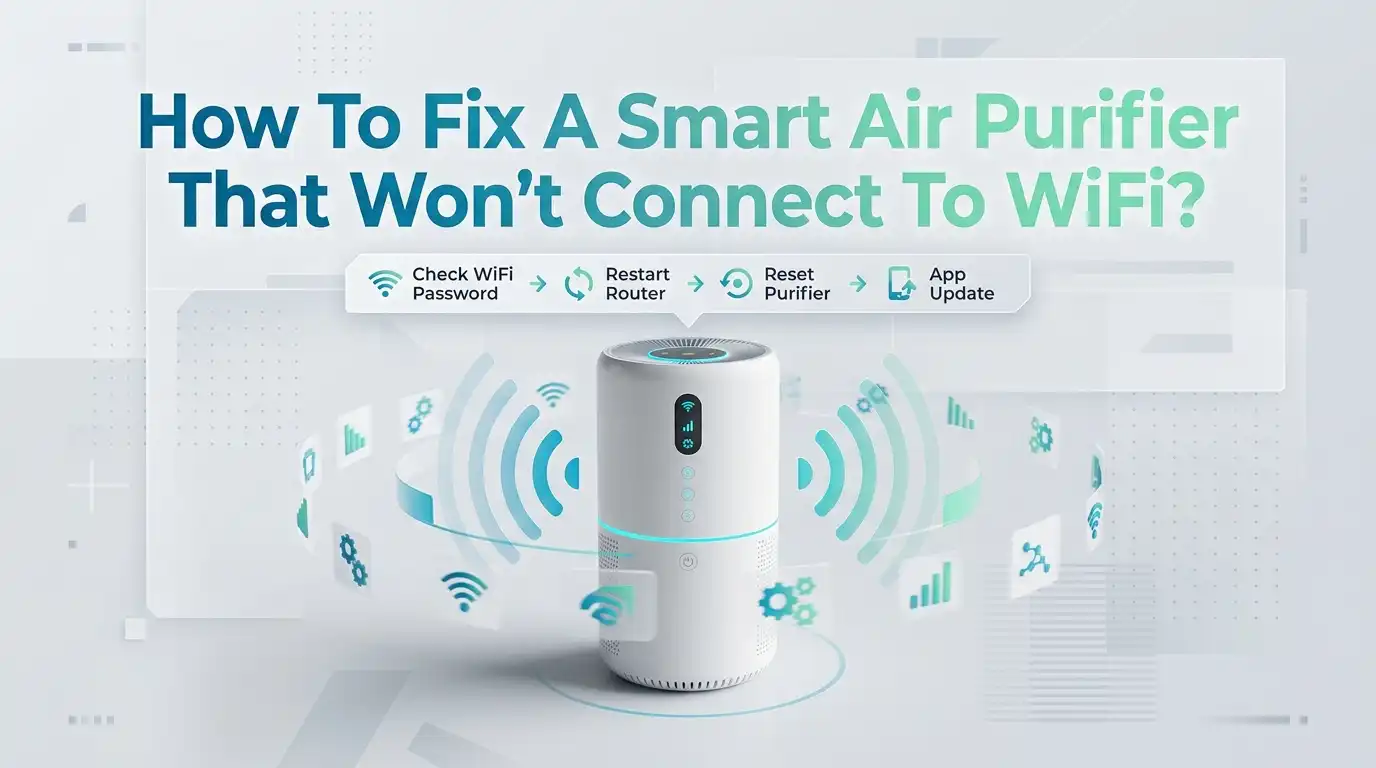
How To Fix A Smart Air Purifier That Won’t Connect To WiFi?
A smart air purifier feels great until the app stops at the setup screen and nothing connects. You tap retry, restart the unit, and try again, but the purifier still stays offline.
That problem is common, and in most cases, the fix is simple. The issue usually comes from the WiFi band, phone permissions, router settings, weak signal, or an old app version.
This guide gives you clear steps you can follow right now. You do not need advanced tech skills. You just need to check the right things in the right order.
In a Nutshell
- Most smart air purifiers connect only to 2.4 GHz WiFi. If your phone is on 5 GHz or your router mixes both bands under one name, setup can fail. This is one of the biggest reasons pairing breaks, even when your internet works fine on other devices.
- Your phone settings matter more than most people think. Many purifier apps need Bluetooth, location, local network access, and a stable WiFi connection to complete setup. If one permission is off, the app may never find the purifier. A small phone setting can block the whole process.
- Distance can ruin setup. During pairing, keep the purifier, your phone, and your router close together. A weak signal, thick wall, or busy room full of electronics can stop the first connection. Once pairing works, you can usually move the purifier back to its normal spot.
- A simple restart often works if you do it in the right order. Turn off the purifier, restart the router, then restart your phone, and try setup again. This clears short term network problems and helps the app start fresh. It takes only a few minutes and often saves a lot of stress.
- Some router settings block smart devices. WPA3, band steering, hidden network names, MAC filtering, disabled DHCP, enterprise security, VPN use, or client isolation can all cause trouble. These settings are great for some devices, but older smart home products often do better with simpler settings.
- If a mobile hotspot works but home WiFi does not, the purifier is likely fine. That means the issue is probably with your router settings, not the purifier. This one test can save a lot of guessing. It also helps you decide whether to keep troubleshooting at home or contact support with a clear answer.
Start With the Most Common Cause First
Before you change a lot of settings, start with the issue that causes the most failed setups. Most smart air purifiers work only on 2.4 GHz WiFi. If your phone is using 5 GHz, the app may send the wrong network details during pairing, and the purifier cannot join.
Check your router app or WiFi settings page first. See whether your network has a 2.4 GHz option. Then connect your phone to that band before you try setup again. If your router uses one network name for both bands, you may need to split them for a few minutes.
This first check is fast and often solves the whole problem. Do this before you reset the purifier or reinstall the app.
Pros: Quick, safe, and easy to test.
Cons: Some routers hide the band settings, so this step can feel annoying if your router app is limited.
Make Sure Your Purifier Really Supports App Control
This sounds obvious, but it is worth checking. Some air purifier lines have both smart and non smart models that look almost the same. If your unit does not have a WiFi icon, app pairing button, or smart setup mode, the issue may not be your router at all.
Look at the label on the purifier, the quick start guide, or the model page in the app list. Make sure you picked the exact model during setup. A wrong model can make the app search for a signal or setup method your purifier does not use.
Also check whether the purifier is already linked to another account. Some models need a full reset before they can connect to a new phone or a new home network.
Pros: Prevents wasted time and repeated failed pairing attempts.
Cons: It does not fix the issue by itself, but it helps you stop troubleshooting the wrong problem.
Connect Your Phone to the Correct WiFi Band
Your phone plays a big part in setup. Even if the purifier supports only 2.4 GHz, your phone may stay on 5 GHz because that band is faster. During pairing, many apps use your phone’s current network details. If those details point to 5 GHz, setup often fails.
Open your phone WiFi settings and confirm the network band. If your router shows separate names, join the 2.4 GHz one. If it uses one name for both, step closer to the router settings and try to force a 2.4 GHz connection by turning off 5 GHz for a few minutes.
Also turn off mobile data during setup. Some phones switch away from weak WiFi and then the app loses the connection path.
This one change looks small, but it fixes a huge number of smart device pairing problems.
Pros: Easy to try and often very effective.
Cons: Some mesh systems make it hard to force your phone onto 2.4 GHz.
Separate 2.4 GHz and 5 GHz on Your Router
If your router uses one WiFi name for both bands, your purifier may get confused during setup. This is common with mesh systems and newer routers. A short term fix is to give each band its own name, like Home 2G and Home 5G, then pair the purifier to the 2.4 GHz network.
To do this, open your router settings and look for wireless settings, smart connect, band steering, or combined SSID. Turn that feature off, then rename the bands. After that, reconnect your phone to the 2.4 GHz network and run setup again.
This method works well because it removes guesswork. The purifier sees only the band it can use. After setup, you can test whether the purifier stays online if you merge the bands again, though many people leave them separate.
Pros: One of the most reliable fixes for smart home devices.
Cons: It can affect how other devices connect, and some people do not like managing two network names.
Check the WiFi Name and Password Carefully
A simple typo can waste an hour. Smart purifier apps often fail with a vague error message, even when the real problem is just the wrong password or a WiFi name that does not match exactly.
Type the password slowly. Watch for capital letters, extra spaces, and saved passwords that may be out of date. If you recently changed your WiFi password, the purifier will not know that until you pair it again. Also check the network name, because some apps need an exact match.
Some devices also struggle with unusual symbols in the password or network name. If setup keeps failing, try a simpler password for a few minutes, complete setup, then decide whether to keep it or change it again.
Simple does not mean weak forever. It just helps you test the connection.
Pros: Very easy to test and often overlooked.
Cons: Changing your password affects other devices, so use this step with care.
Turn On the Right Phone Permissions
A lot of smart air purifier apps need more than plain WiFi access. They may also need Bluetooth, location, camera, local network access, and app storage permission. If one of these is off, the purifier may never appear in the app, even if the purifier itself is working fine.
Open your phone settings, find the purifier app, and allow every needed permission. Then open Bluetooth and keep it on during setup. On some phones, location access is also required for WiFi discovery. If you use a VPN, turn it off for now. A VPN can interrupt the setup path.
If the app still acts strange, clear its cache or reinstall it. Then sign in again and restart the pairing process from the beginning.
Pros: Safe and simple. It often fixes app discovery problems fast.
Cons: Reinstalling the app may sign you out or remove saved settings.
Bring the Purifier, Phone, and Router Closer Together
Setup works best when the purifier, phone, and router are close. During the first connection, weak signal strength can stop the pairing process before it finishes. Thick walls, metal shelves, large TVs, and crowded electronics can all weaken the signal.
Move the purifier within a few feet of the router if you can. Stand close with your phone and start the process there. Once setup is complete and the purifier shows online in the app, you can move it back to the room where you want to use it.
Also reduce interference. Move the purifier away from microwave ovens, cordless phone bases, baby monitors, and other wireless gear. A cleaner signal often makes setup much smoother.
Pros: Costs nothing and helps both setup and long term connection quality.
Cons: It can be inconvenient if your purifier is large or heavy.
Restart Everything in the Right Order
A restart can fix a surprising number of connection problems, but order matters. If you restart things at random, you may miss the real issue. Use this sequence instead.
First, unplug the purifier and wait about 30 seconds. Second, restart your router and wait until the internet is fully back. Third, restart your phone. Fourth, plug the purifier back in and wait until it finishes booting. Then open the app and begin setup again.
This clears temporary IP issues, refreshes the router memory, and gives the phone a fresh connection. It also helps if the purifier got stuck in a failed setup state.
Pros: Fast, safe, and useful before deeper troubleshooting.
Cons: It may not solve settings problems like WPA3 or band steering.
Reset the Purifier and Add It Again in the App
If the purifier was paired before, moved to a new home, or linked to another account, you may need to reset its network settings. Many smart purifiers store old WiFi details and keep trying to reconnect to the old network. That blocks new setup.
Check your manual for the exact reset steps. Common methods include holding the power button, WiFi button, or a button combination for several seconds until a light blinks or the unit beeps. After the reset, remove the old device entry from the app if it still appears there. Then add it again like a new product.
This method is helpful after a router change, password change, or app account switch. A clean start often works better than endless retries.
Pros: Strong fix for old saved network conflicts.
Cons: You may lose schedules, automations, or custom app settings and need to set them up again.
Fix Router Settings That Block Smart Devices
If basic fixes fail, your router settings may be the real problem. Many smart air purifiers prefer simple home network settings. Newer routers often use features that older smart devices do not handle well.
Check these settings one by one. Try WPA2 instead of WPA3 or mixed WPA2 and WPA3 mode. Make sure DHCP is on. Turn off MAC filtering if you use it. Avoid hidden WiFi names during setup. If you have client isolation, AP isolation, enterprise security, or strict IoT firewall rules, disable them for testing. Also turn off VPN on the router if one is active.
Do not change everything at once if you can help it. Test one change, then try setup again. That way you learn what actually fixed it.
Pros: Can solve stubborn cases that basic steps miss.
Cons: Router settings can feel technical, and some changes reduce security if left that way long term.
Use a Guest Network or Mobile Hotspot to Isolate the Problem
If you want a fast test, try a different network. A 2.4 GHz guest network is a good first option. If your router lets you create one, make it simple and pair the purifier there. This helps you see whether your main network settings are the problem.
If that still does not work, try a mobile hotspot from another phone if your purifier app supports it and the hotspot can run on 2.4 GHz. If the purifier connects to the hotspot but not your home WiFi, the purifier is probably fine. The trouble is likely in your router setup.
This test is useful because it stops the guessing. It gives you a clear yes or no answer about where the failure lives.
Pros: Great for diagnosis and often very revealing.
Cons: Some hotspots default to 5 GHz, and some guest networks block local device discovery.
Update the App and Firmware and Know When to Call Support
Old software can block setup. Open your app store and install the latest purifier app version. Then check whether your router has a firmware update. Router updates can improve device compatibility and fix random pairing failures.
If your purifier can connect for a moment and then drop offline, a software issue becomes even more likely. Also check your email account if the app requires account verification. A missing verification email can stop setup before the purifier even gets a chance to join WiFi.
At this point, if the purifier still does not broadcast its setup signal, never enters pairing mode, or vanishes from setup every time, the unit may have a hardware problem. Contact support with your model number, app version, router brand, and a short list of the fixes you already tried. That makes support much faster and more useful.
Pros: Helps solve software bugs and saves time with support.
Cons: Updates can take time, and hardware faults usually need direct help.
Prevent the Problem From Coming Back
Once your purifier is online, take a few simple steps to keep it that way. Save your WiFi name and password somewhere safe. If you change your router later, remember that the purifier may need to be paired again. Keep the app updated, and do the same for your router firmware.
If your router supports a separate 2.4 GHz network for smart devices, keep that network active. This makes future setup easier for other smart products too. Try not to place the purifier in a dead spot far from the router. If the signal is weak in that room, the purifier may drop offline later even after a successful setup.
A few minutes of prevention can save a lot of repeat trouble. Once the basics are stable, smart purifiers usually stay connected well.
Pros: Reduces future setup pain and improves long term stability.
Cons: It needs a small amount of planning now to avoid problems later.
FAQs
Why does my smart air purifier see WiFi but still fail during setup?
This usually means the purifier can detect the network, but something blocks the full connection. The most common causes are the wrong band, a password error, missing phone permissions, or a router security setting like WPA3. Start with 2.4 GHz, app permissions, and a router restart.
Can I connect a smart air purifier to 5 GHz WiFi?
Most models cannot. Many smart air purifiers use 2.4 GHz only. Even if your phone and laptop work well on 5 GHz, the purifier may not support it at all. Check your manual, but in most cases you should use 2.4 GHz for setup and daily use.
Why does the purifier connect to a hotspot but not my home WiFi?
That is a strong sign that your purifier is working and your router settings are the issue. Look at band steering, WPA3, hidden network names, MAC filtering, DHCP, guest network rules, or VPN settings. A hotspot test is a very useful way to narrow down the problem.
Do I need Bluetooth and location turned on to connect the purifier?
In many cases, yes. A lot of purifier apps use Bluetooth during setup, and many phones also require location access for device discovery. If either one is off, the app may fail before the purifier even reaches the WiFi step. Turn both on during setup, then test again.
Should I factory reset my purifier right away?
No. Start with easier steps first. Check 2.4 GHz, phone permissions, router distance, and the WiFi password. If the purifier was paired before, moved to a new account, or changed networks, then a reset becomes a smart next step. Resetting too early can create extra work.
What router security setting works best for older smart purifiers?
WPA2 is often the safest choice for compatibility during setup. Some older smart devices struggle with WPA3 or mixed WPA2 and WPA3 mode. If you change this setting for testing, you can later review whether your purifier stays stable with stronger settings or whether it needs the simpler option.

I’m Maya Brown, the voice behind Pure Breeze Vault. I write detailed, honest, and easy-to-follow air purifier reviews to help readers compare features, understand filter technologies, and choose products with confidence. My goal is to make research simpler, clearer, and more practical for anyone improving indoor air quality at home.